Make your first sprite
-
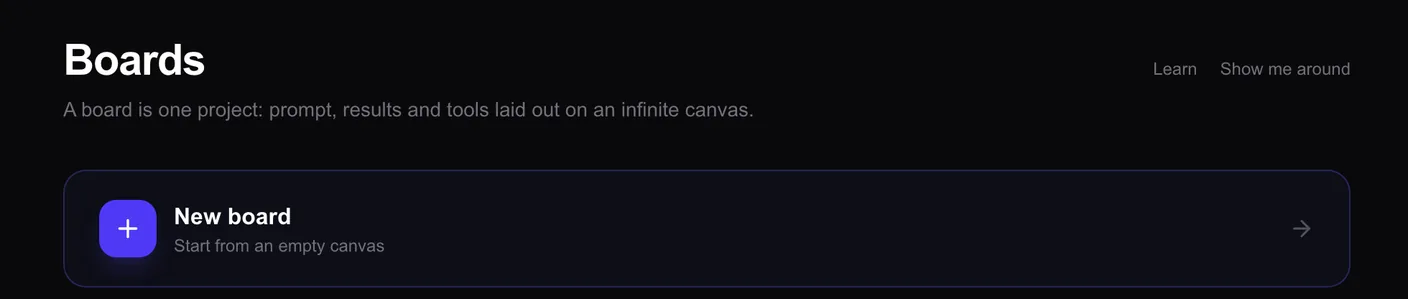
Start a new board. Sign in, press + at the top of the sidebar, then New board. Your very first time, a short guide opens on its own: follow it, or skip it and carry on here.
-
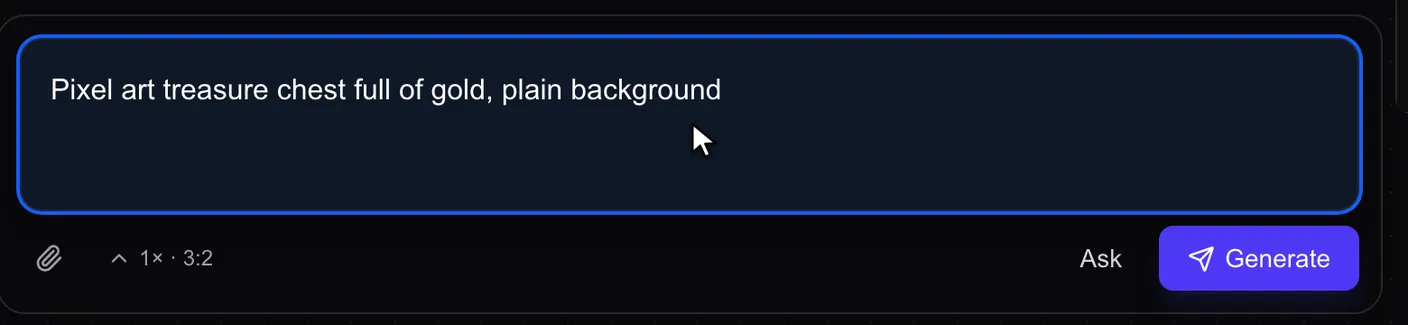
Describe what you want. Type it in the box at the bottom and press Generate. Say "pixel art" and ask for a plain background. The image takes about 20 seconds.
-
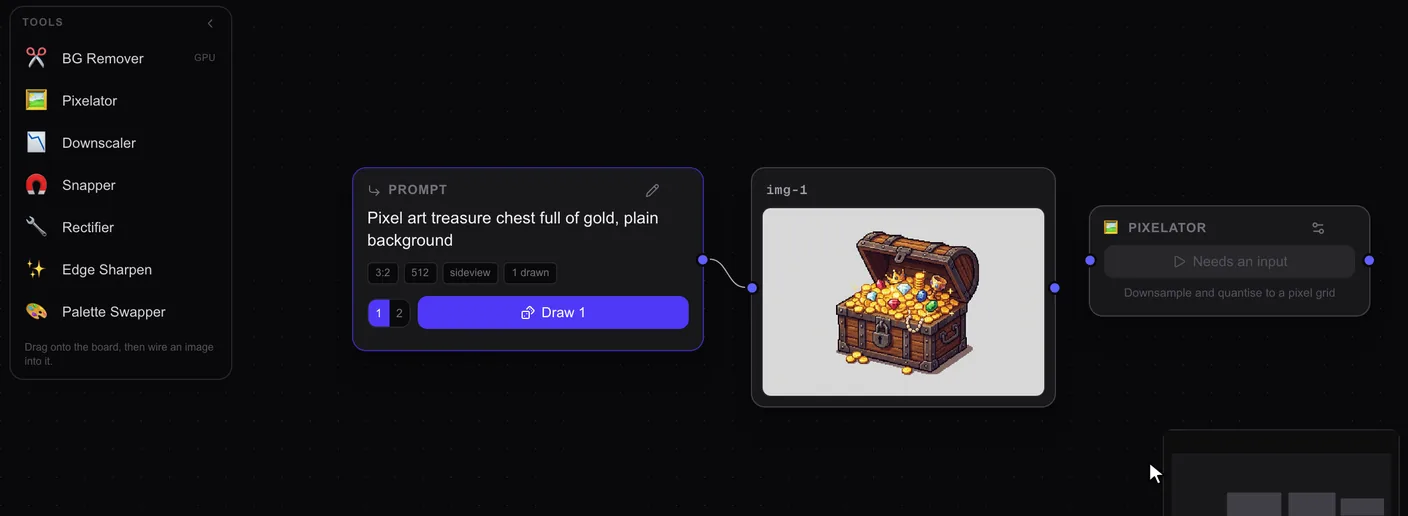
Add Pixelator. Drag it from the Tools tray onto the board.
-
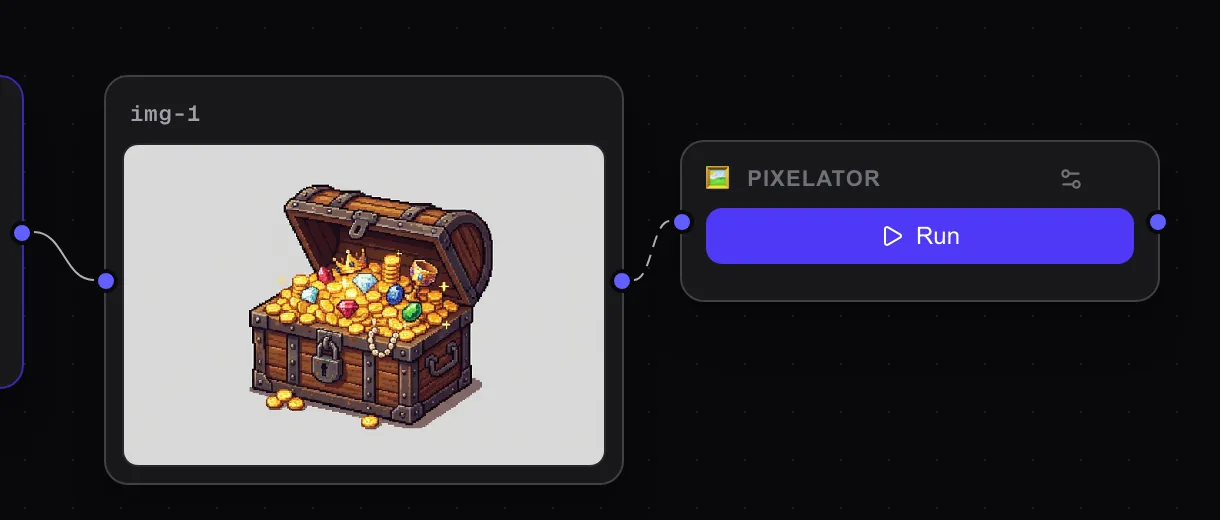
Wire it in. Drag from the dot on the right of your image to the dot on the left of Pixelator.
-
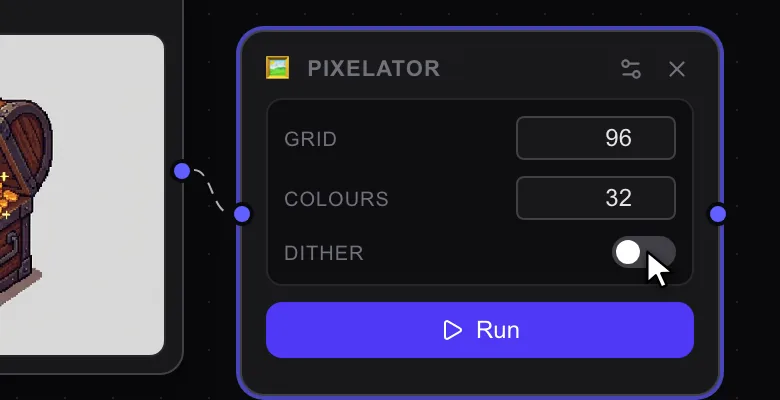
Press Run. For chunkier pixels, first open the card's settings (the sliders icon), set Grid to 96 and turn Dither off. The result lands on its own card, and your original stays as it was.
-
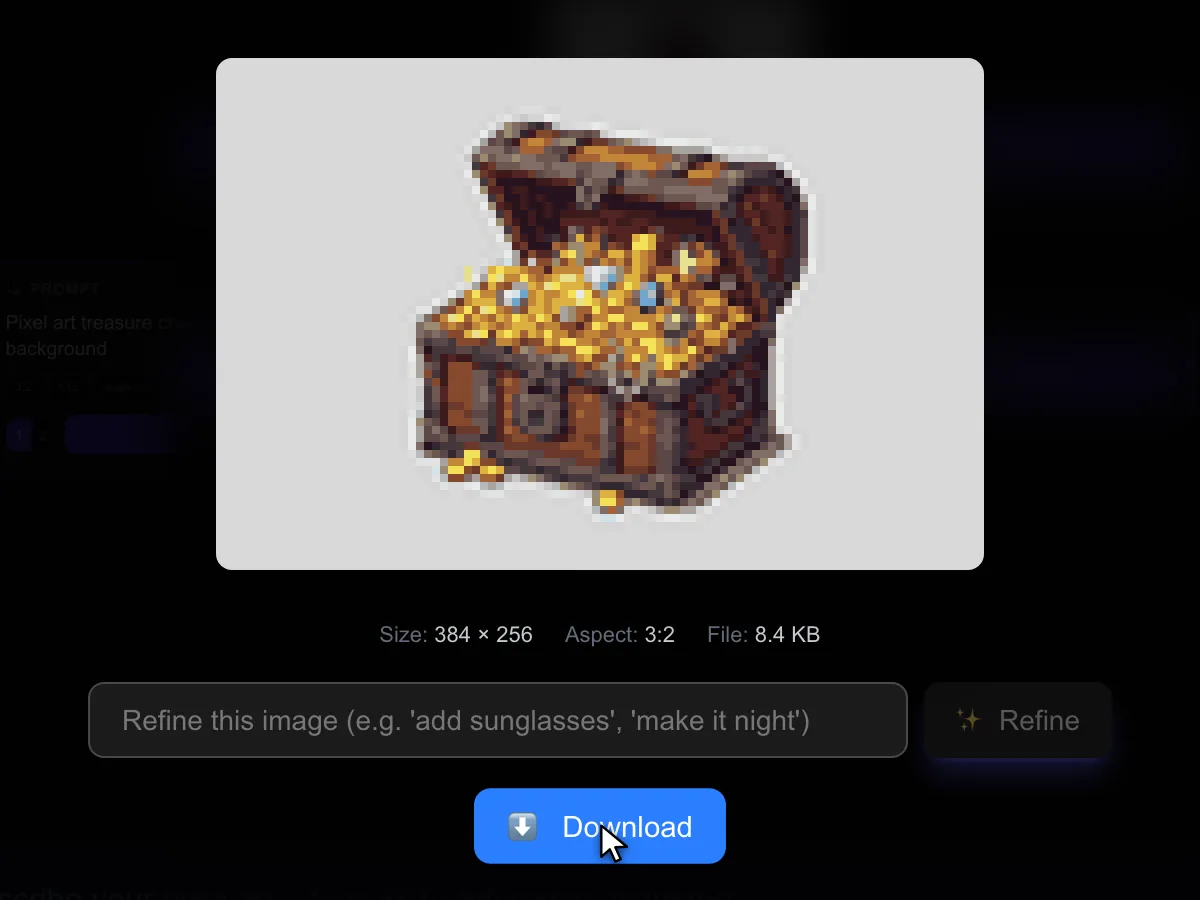
Download it. Click the result to see it up close, then press Download.